Home / Features
One live board for the whole office.
The Board, in-office messaging, production analytics and the morning huddle, in one app on every PC. OperatoryView reads your practice software and never writes to it.
The Board
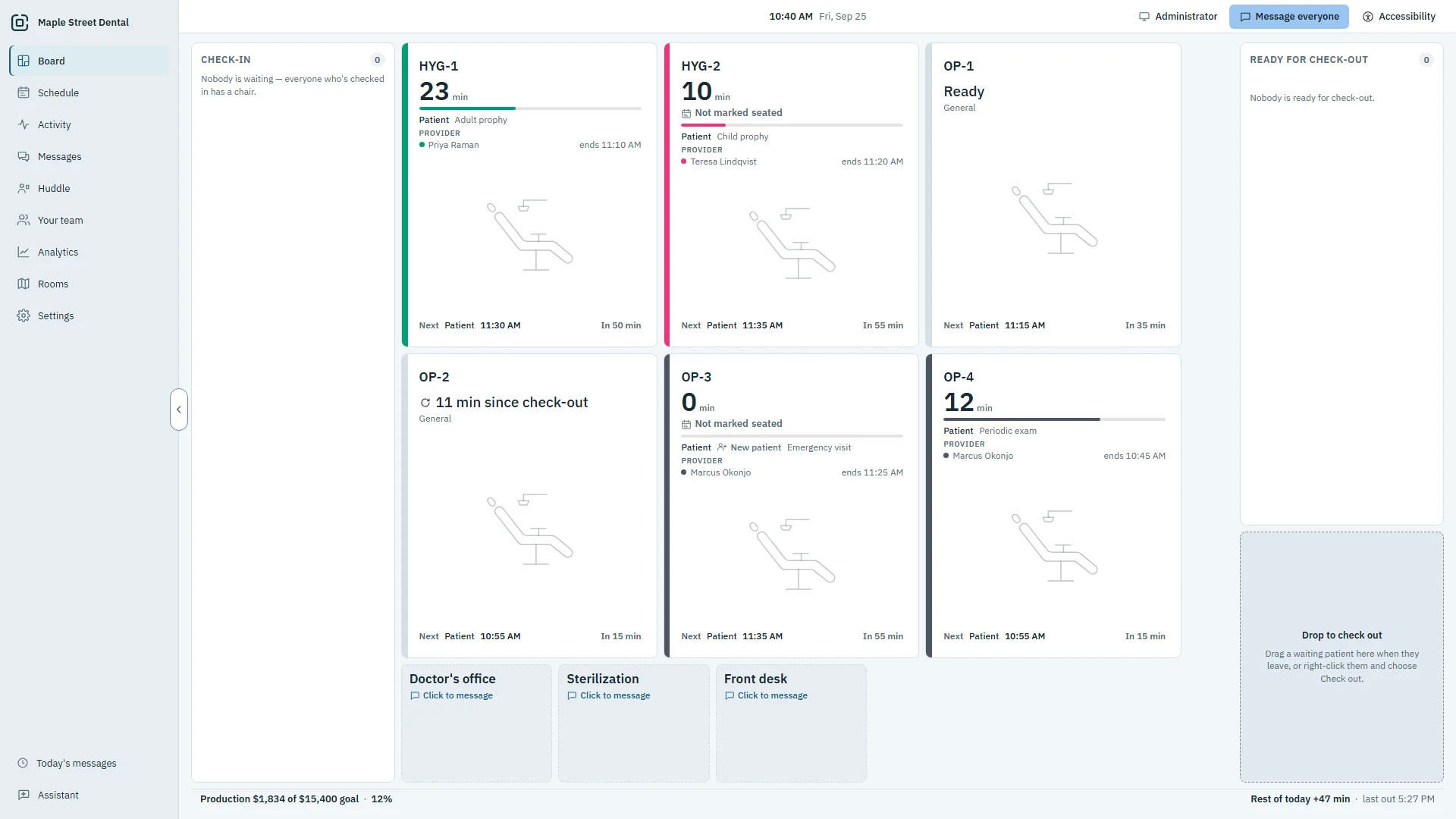
Every operatory from your practice software as a room card, laid out like your office, with its patient, procedure, provider and a timer.
- Drag a waiting patient onto a free room, or right-click to seat or move them
- Past the booked end, the minutes over show at a glance
- A New patient mark shows a first visit
- Privacy mode removes patient names on screens patients can see
Messaging
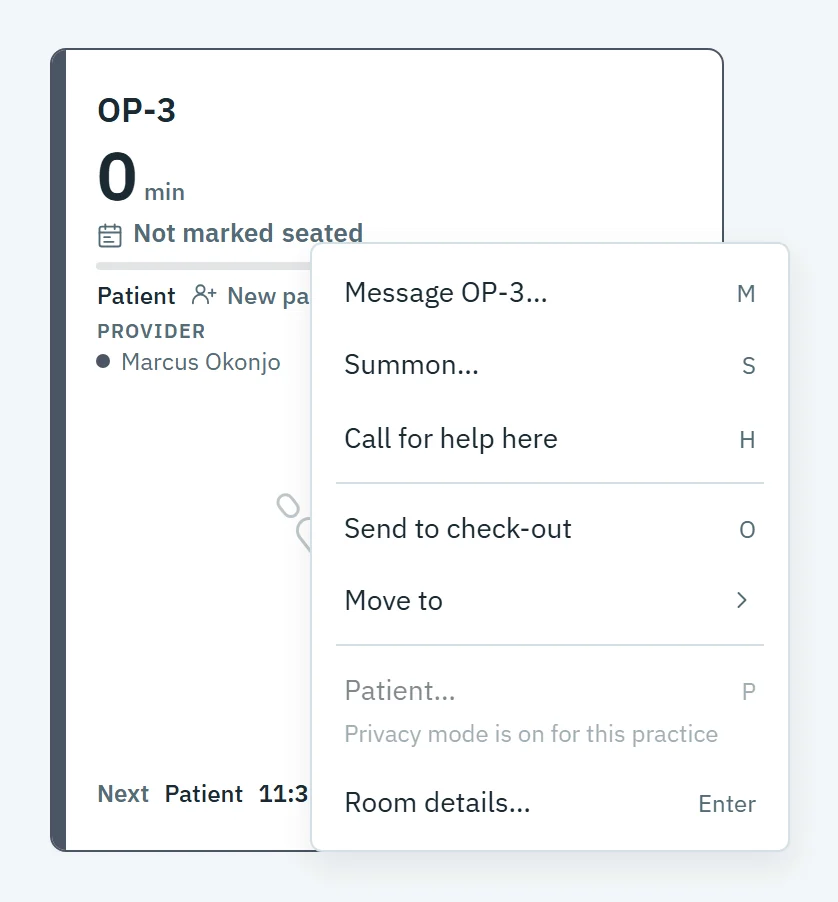
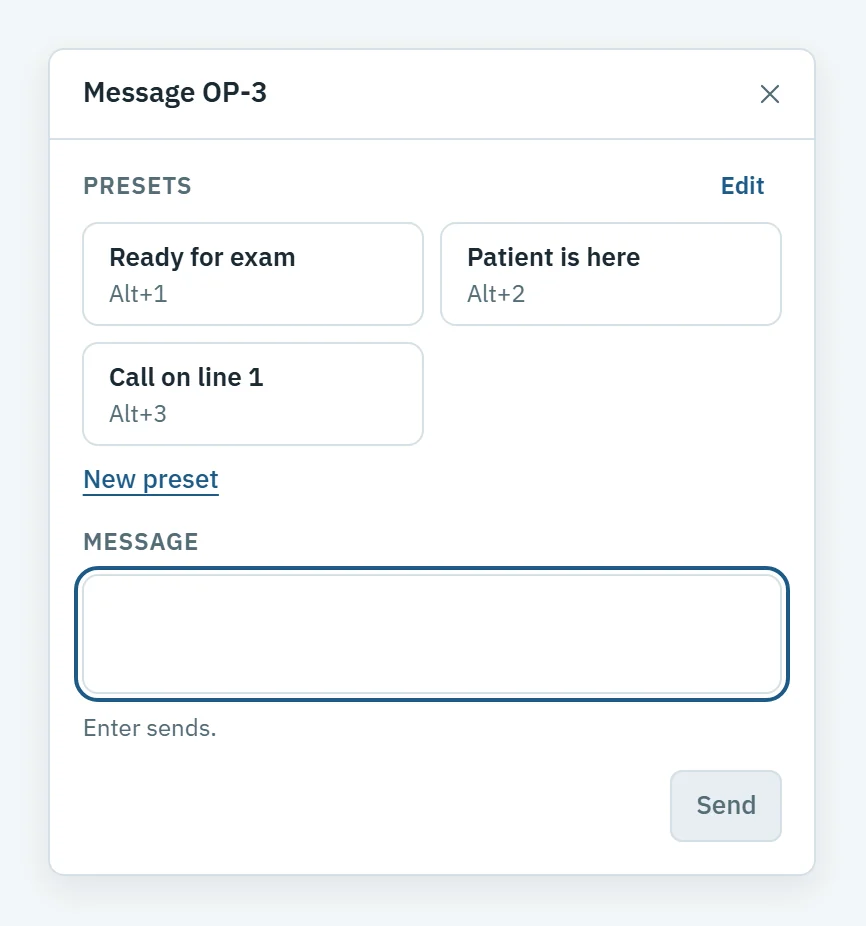
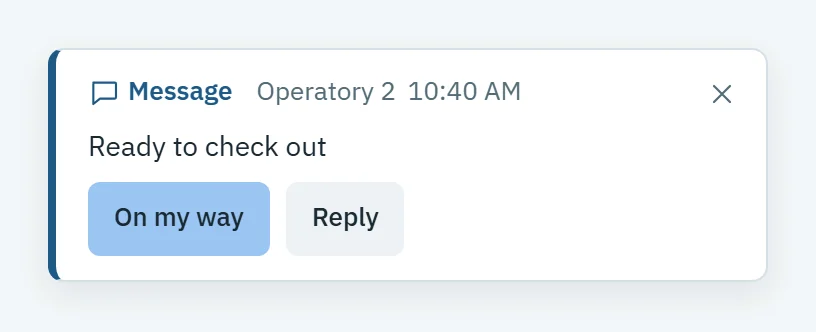
Message a room, the front desk or everyone, with your own presets or your own words. It pops up on the PCs it is for, with a chime.
- Summon a provider to a room; Summon knows who is out
- A call for help reaches every other PC, and anyone can answer On my way
- An office-wide alert pulls OperatoryView to the front on every PC
- A full office chat: channels, threads, direct messages and files
- Every conversation is searchable, for as long as your admin chooses to keep it
Scheduling
Today's schedule by room, beside what is actually happening, and the week at a glance. Read from your practice software, never written to it.
More on scheduling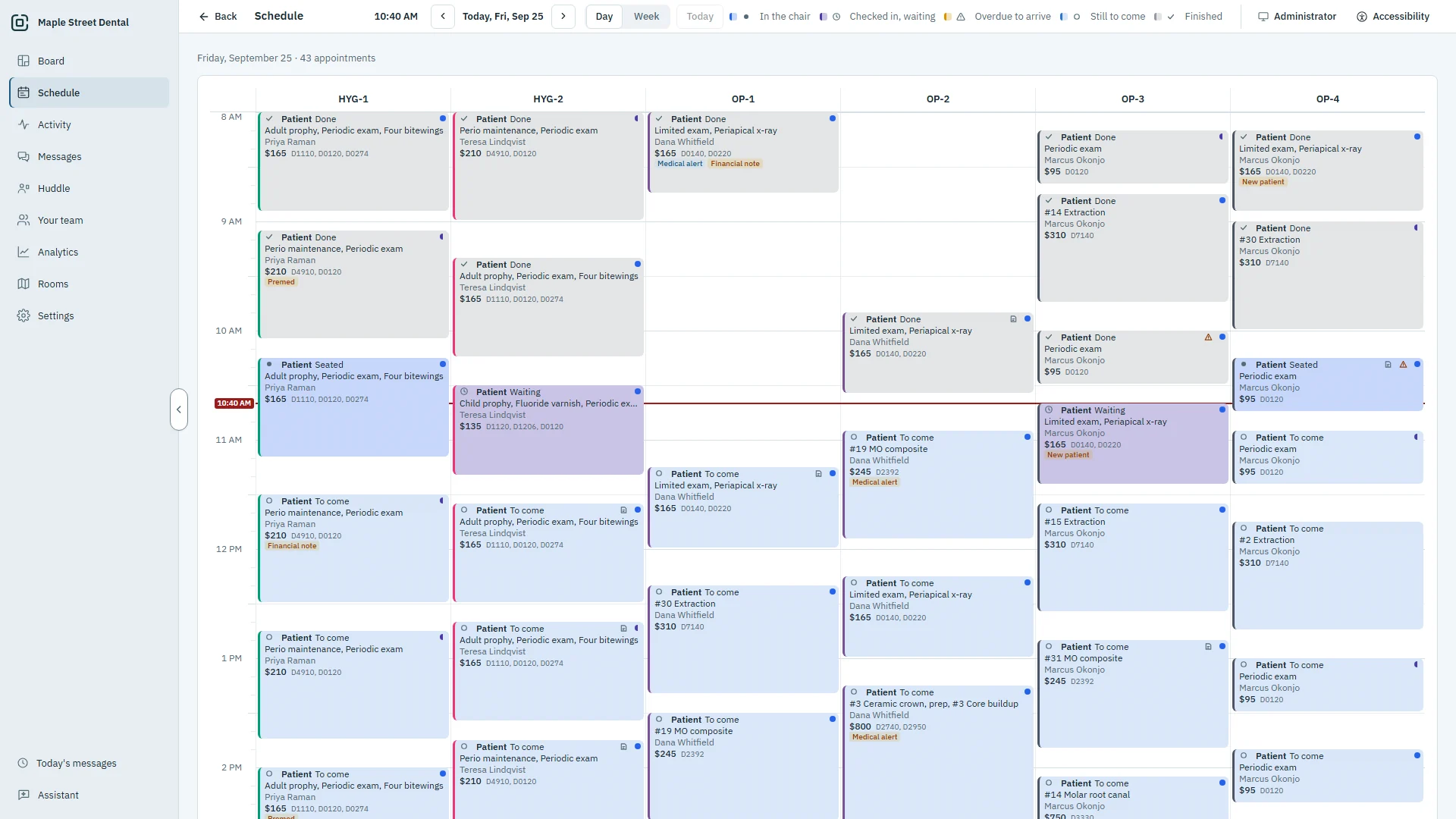
Production analytics
Understand production, then the time behind it. Your practice software runs the schedule; OperatoryView shows how the schedule actually performed.
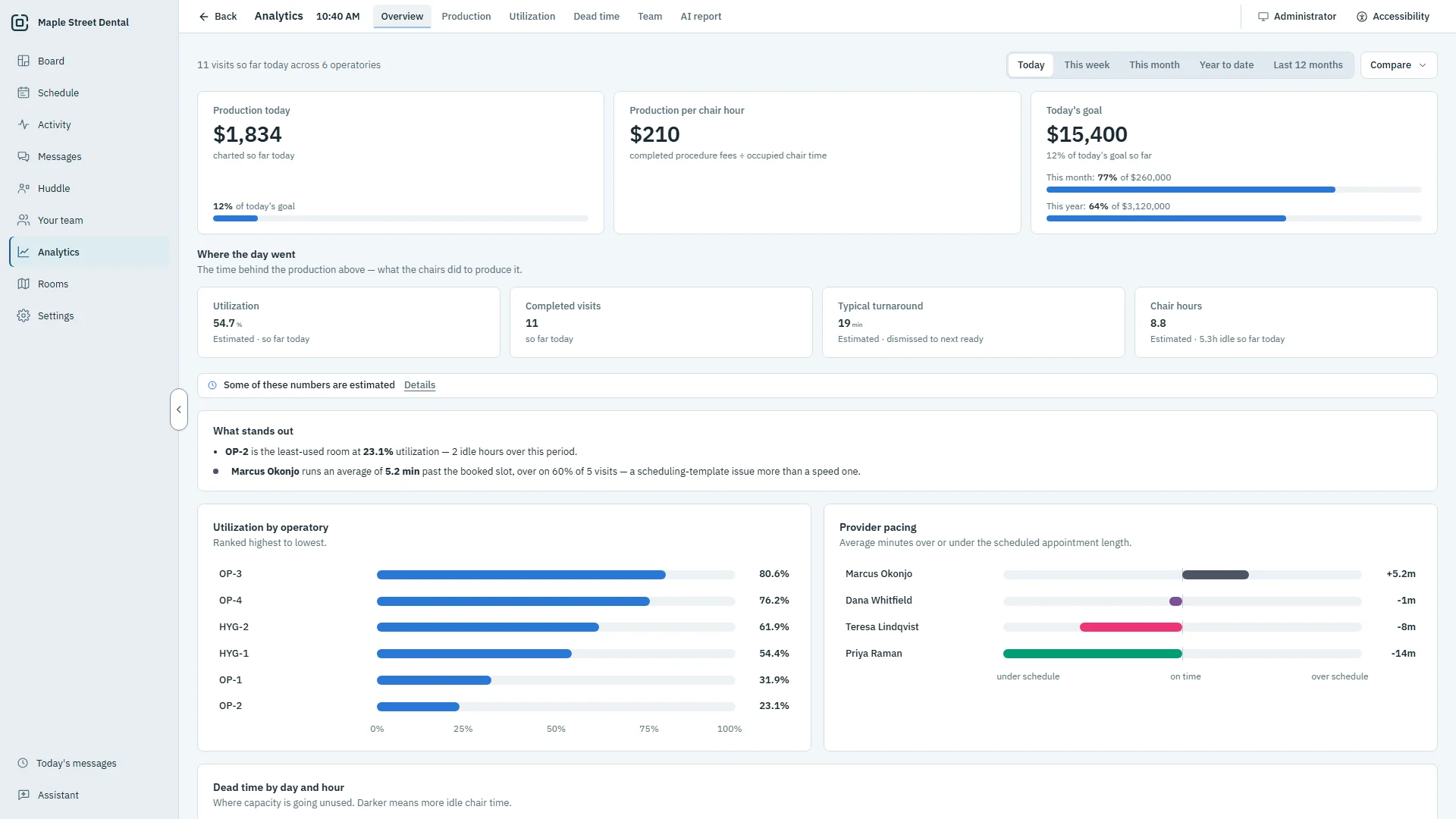
Production per chair hour
By room and by provider, so a busy room and a quiet one can be compared fairly.
Utilization and dead time
How much of each room's open time had a patient in the chair, by day and hour.
Provider and procedure pacing
Which procedures run long, and who runs behind, against what was booked.
Goals
Today's production against your practice's goal, and the month against its own.
Booked against rostered hours
The hours each room and provider was available, against what was booked.
No patient names
The analytics keep only totals and counts: no patient name, initials or chart number.
Morning huddle
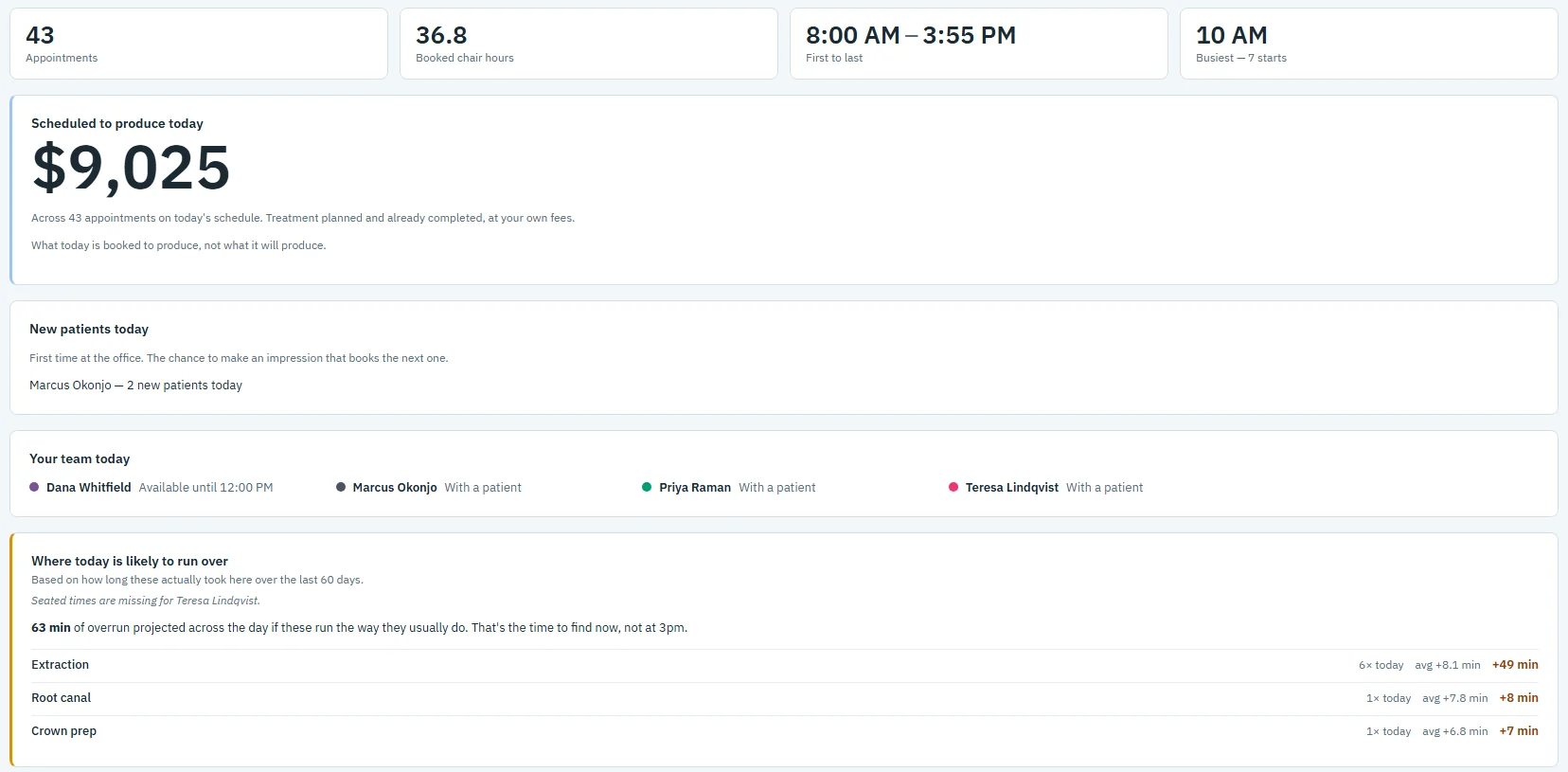
See the day before it starts: what today is booked to produce, who is new, who is in, and where the schedule is likely to run over.
- Scheduled production, appointments and booked chair hours
- New patients today, and your team's day
- Where today is likely to run over, from how long these visits really take
Your team, and what each PC sees
The front desk marks a provider out or off, and the Board and Summon follow at once.
Who is in today
Admins keep each provider's working hours, time away and notes.
The Patient window
Alerts, allergies, medications and details from your practice software that the PC is allowed to see, plus your own alerts.
Privacy mode
One switch hides patient names on screens patients can see. Names are removed, not covered up.
Admin PCs
Everything: the Board, the analytics, the huddle and Settings.
Front desk PCs
The Board, messages, the schedule and Your team. As many as you like.
Operatory PCs
The Board, messages and today's schedule, with its own room marked.
An assistant that knows your day.
Ask about your practice in plain words. It sees only what the PC asking may see, on HIPAA-eligible services under a BAA. Powered by Claude.
"Who is off today?"
From Your team, as the front desk marked it this morning.
"What does the afternoon look like?"
From today's schedule, room by room.
"How does this month compare with the last?"
From your production analytics.
Set up in under an hour
Most practices set up in under an hour. No technician visit.
Install on your server
Install OperatoryView on the computer that runs your practice software and connect it in the Server Manager with your practice's keys.
Arrange your rooms
Your operatories arrive from your practice software. Lay them out the way your office is.
Set up each PC
Install the app on each office PC. It finds the server; pick what the PC is and type your office password once.
See it with your own rooms.
Book a demo and we will walk you through it on a practice like yours.