The day's schedule, room by room.
Every appointment from your practice software, laid out by room beside what is actually happening: who is in the chair, who is waiting, and who is still to come.
The whole office reads the same day.
Your practice software holds the appointments. OperatoryView lays them out the way your office runs, so the front desk and every room see the same schedule, and where it is heading.
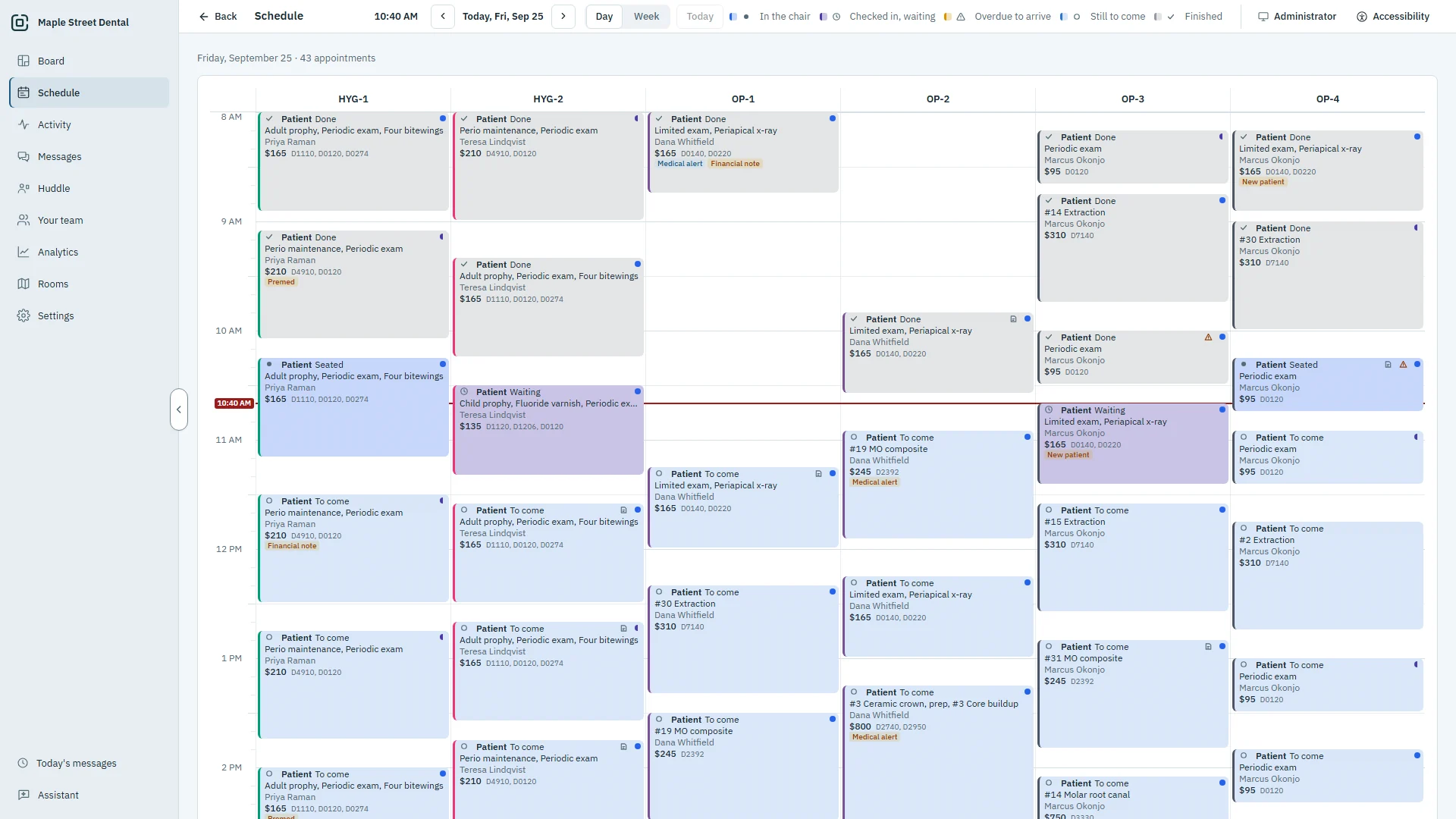
A day view by room
One column per room, in the same order as your Board, with time running down the day.
- A line for now across every room, and office hours marked
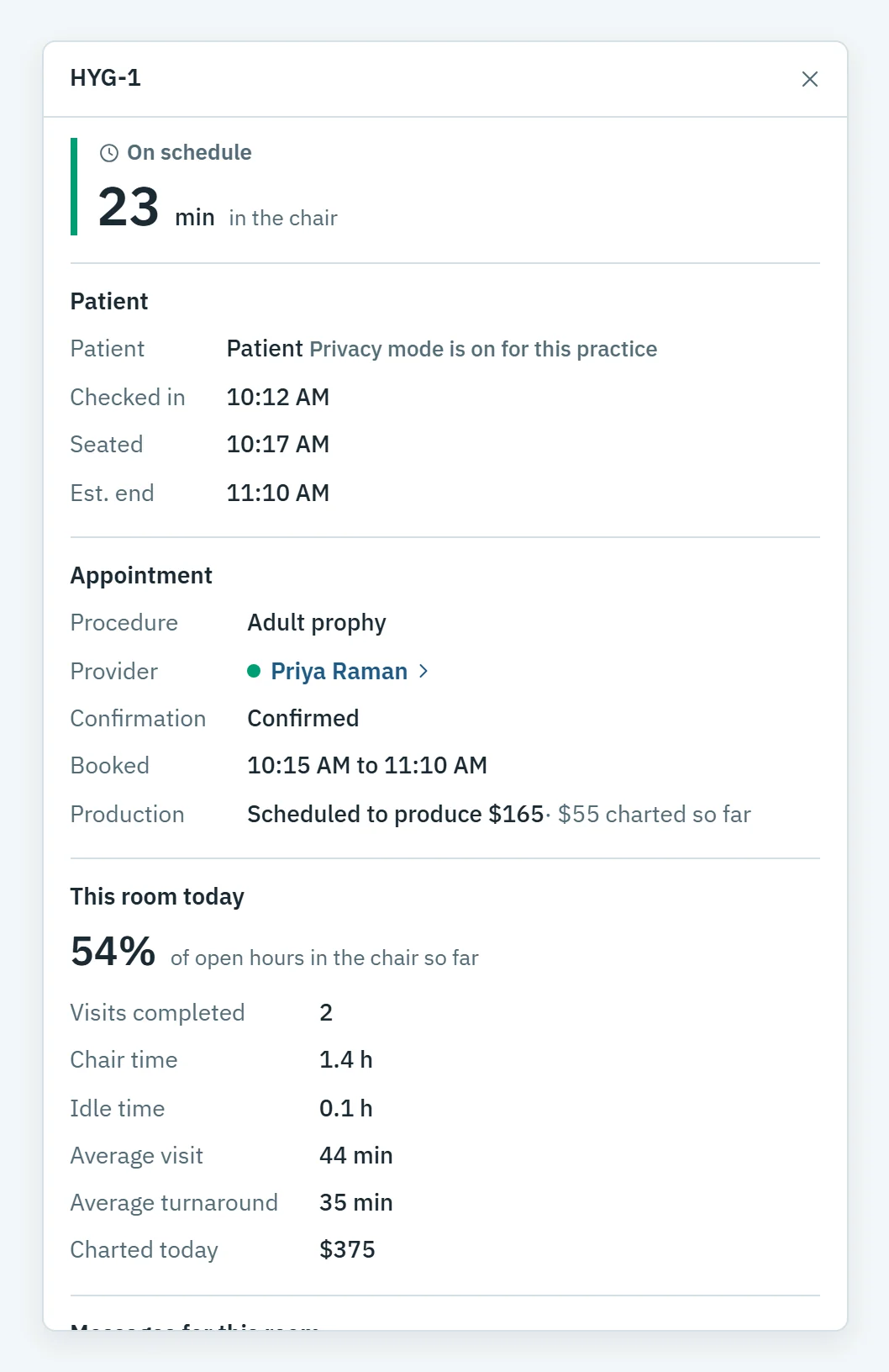
- Each appointment's state: in the chair, waiting, overdue to arrive, still to come or finished
- Provider color, confirmation and a New patient mark on every appointment
- Premed, medical alert and financial note marks where they apply
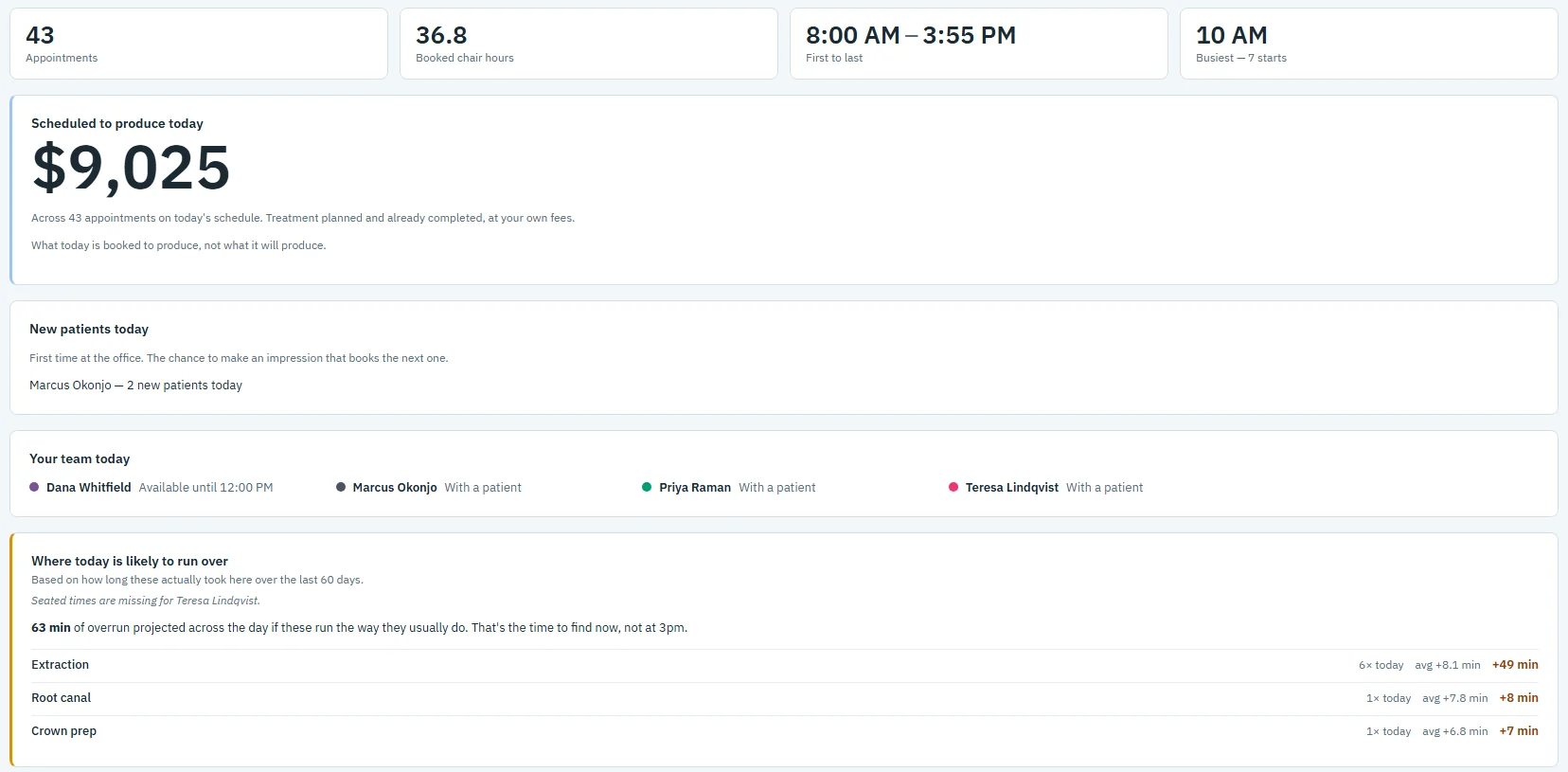
See the trouble before it starts
Know where the day is likely to run over, and where there is room, while there is still time to act.
- Likely overruns by room, from how long these visits really take
- Each provider's day in the morning huddle, with openings of 30 minutes or more
- The week at a glance, with every day near full flagged
Made for the front desk and every room
The week at a glance
Each day's booked hours against the chair time you have, and how many appointments. Click a day to see it.
Every appointment's details
Procedures and codes, provider and hygienist, scheduled production, confirmation, and when the patient checked in, was seated and checked out.
Always current
Today's view updates when a patient is seated or moved, or your practice software changes.
Today, in every room
An operatory PC sees today's schedule with its own room marked.
Notes stay at the desk
Appointment notes show on admin and front desk PCs. An operatory PC sees only that a note is there.
Read-only
OperatoryView reads your schedule and never writes to it. Book and change appointments where you always have.
Follow-up lists
Keep track of the patients to call back, right beside the schedule. Your front desk makes the lists it needs, and OperatoryView keeps the notes and the calls due.
Your own lists
Make the lists your office needs, each a regular list or a call list. A patient can be on more than one.
Add from anywhere
Add a patient from a visit on the Board, from a search of your practice software, or from a number in your analytics.
Calls due
Set a day to contact each patient. Calls due gathers today's and overdue calls from every list, and the morning huddle shows them.
Contacted, and by whom
Mark a patient contacted, keep a short note, and see who added them and when.
At the desk
Lists open on admin and front desk PCs. A room PC can add a patient from today's visits, but cannot open a list.
Your practice software untouched
A call list shows phone numbers read live from your practice software. Lists and notes are kept by OperatoryView, never written back, and never sent to the AI.
Questions about scheduling
Can we book or move appointments here?
No. The schedule is read from your practice software, and OperatoryView never writes to it. Book the way you do now, and the change shows here.
How current is it?
Today's view updates whenever a patient is seated or moved on the Board, or your practice software changes.
What does an operatory PC see?
Today's schedule, with its own room marked.
Can I open a patient from the schedule?
Yes, for today's appointments: open the Patient window from the appointment.
Does a list change our practice software?
No. Lists, notes and contacted marks are kept by OperatoryView. Your practice software is only read.
Who can see our lists?
Admin and front desk PCs. A room PC can add a patient from today's visits but cannot open a list.
See it with your own rooms.
Book a demo and we will walk you through it on a practice like yours.